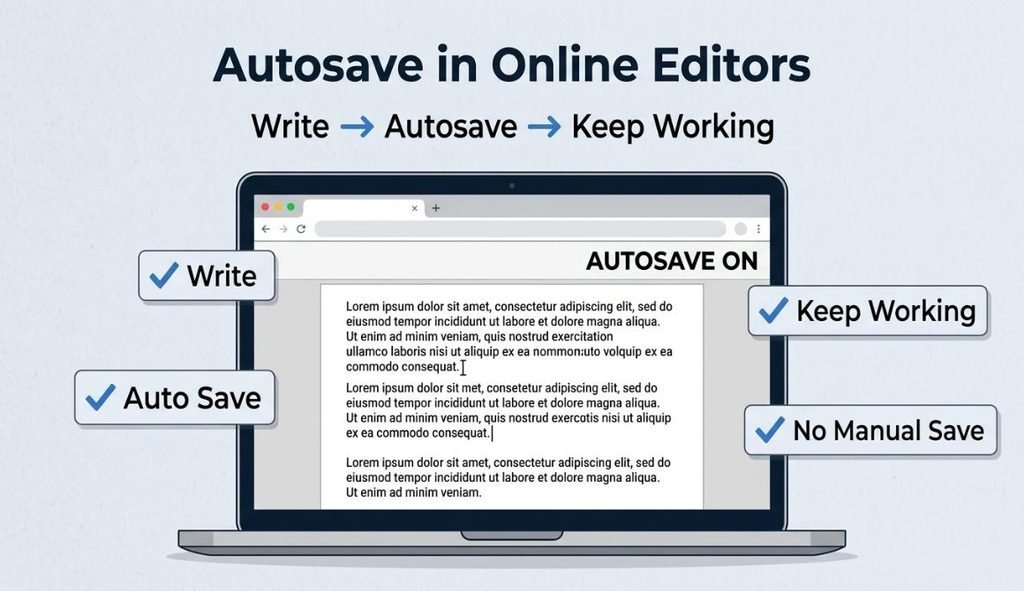
Have you ever spent a long time writing something online and then accidentally closed the browser?
Losing your work can be frustrating, especially when you have written an important note, assignment, email, or article draft.
This is where autosave in online editors can help.
Autosave automatically saves your changes while you are working. Instead of remembering to click a Save button again and again, an online text editor can save your latest work in the background.
But how does autosave actually work? Where is your writing stored? Does autosave mean your work is backed up? And can you still lose an automatically saved note?
This guide explains everything in simple terms.
Table of Contents
What Is Autosave in an Online Editor?
Autosave is a feature that saves your work automatically as you write.
In a traditional program, you may need to click Save to store your latest changes. With an online editor that has autosave, the editor can save those changes for you.
For example, imagine you are writing meeting notes:
Meeting Notes
Discuss the new website design.
Update the homepage content.
Send the report on Friday.
As you add new information, an autosave feature can save the updated version without requiring you to stop and manually save it.
This is useful for people who write notes, assignments, drafts, lists, emails, and other types of text online.
If you are new to browser-based writing, you can first learn what is an online text editor. before exploring how autosave works.
How Does Autosave Work?
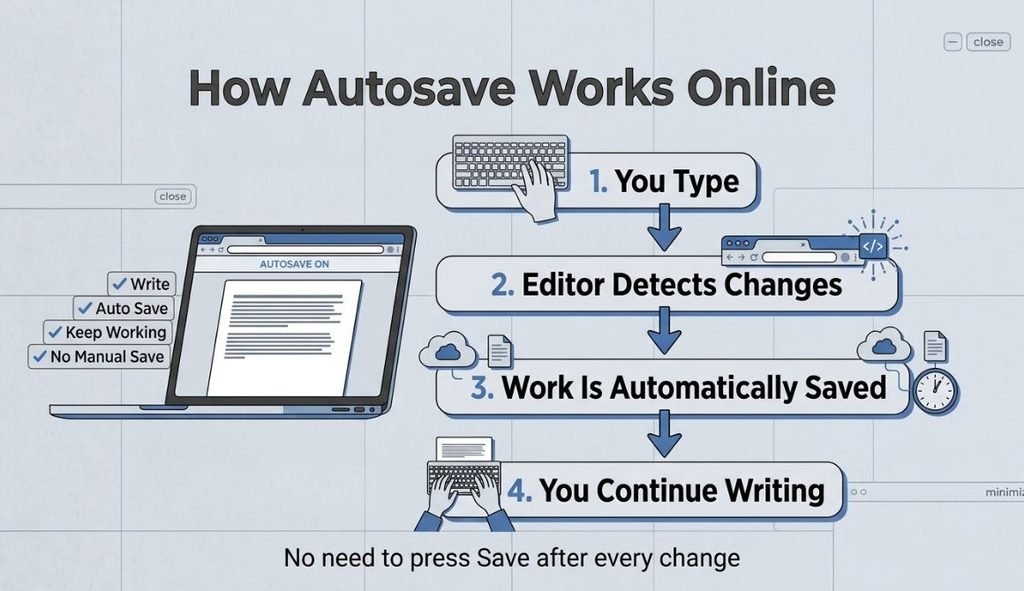
The exact autosave method depends on the online editor.
A browser-based editor may save your work in browser storage on your device. Another editor may save your work to an online account or cloud-based system.
The basic process is simple:
You type → the editor detects a change → the editor saves the change → you continue writing
This can happen automatically in the background.
Some editors save after a short delay when you stop typing. Others may save changes at regular intervals. The exact timing is different from one editor to another.
The important point is that you do not have to remember to press Save every time you make a change.
Where Is Automatically Saved Text Stored?
This is one of the most important things to understand about autosave.
Automatically saved text can be stored in different ways.
Browser Storage
Some online editors use storage provided by your web browser.
In this case, your note may be stored locally on the device and browser where you created it.
This can be convenient because you can continue working without manually downloading a file every few minutes.
However, browser storage is not the same as a permanent backup.
If you clear your browser’s site data, remove stored website data, or change browsers or devices, locally stored notes may not be available.
Online Account Storage
Some online editors connect saved documents to a user account.
This type of storage can make it easier to access your work from different devices, depending on the service.
For example, you may be able to start writing on a computer and later open the same account on another device.
Because storage methods vary, always check how the particular editor saves your work.
Does Autosave Mean Your Work Can Never Be Lost?
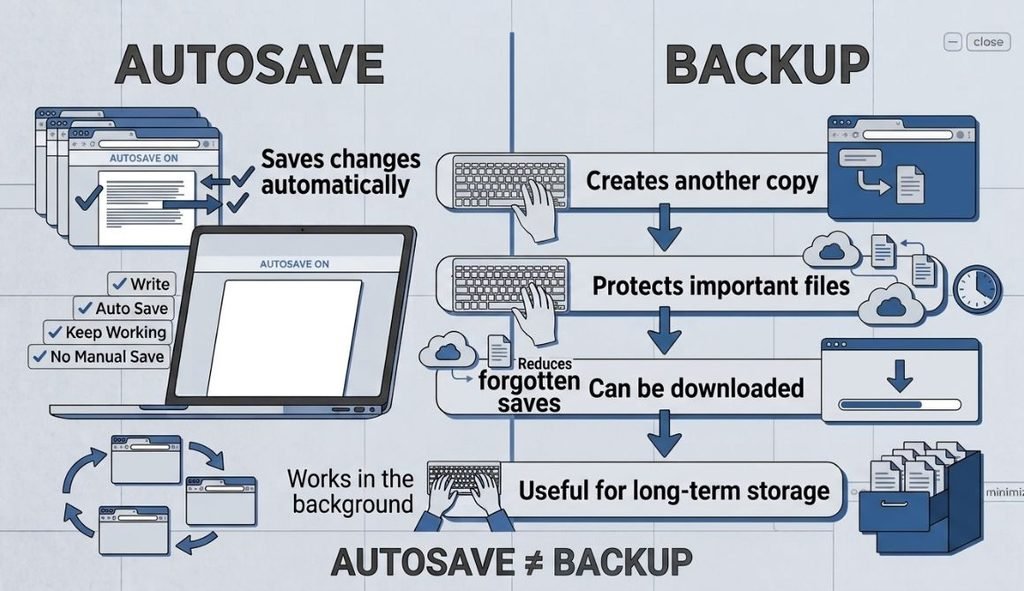
Autosave can reduce the risk of losing recent changes, but it does not guarantee that your work will always be available.
This is especially important when an editor stores notes locally in your browser.
For example, imagine you write an important assignment and the editor saves it automatically. If the note is stored only in browser storage and you later clear the website’s stored data, the saved note may disappear.
That is why you should understand the difference between autosave and backup.
Autosave saves your working changes. Backup keeps another copy of important work.
For important documents, it is a good idea to export or download a copy after you finish writing.
What Happens If You Close the Browser?
If an online editor has autosave, your latest saved work may still be available when you return.
However, this depends on how the editor stores your notes.
For a locally stored note, you may need to return using the same browser and device.
A simple way to understand an editor’s autosave behavior is to test it yourself:
- Open the online editor.
- Write a short test note.
- Wait a moment for the changes to save.
- Close the browser tab.
- Open the editor again.
- Check whether your note is still there.
This test can help you understand what happens to your work when you close or refresh the browser.
Autosave vs Manual Save
Autosave and manual saving have different purposes.
| Autosave | Manual Save |
|---|---|
| Saves changes automatically | You click Save yourself |
| Requires less effort | Gives you direct control |
| Useful while drafting | Useful for creating a separate file |
| Helps prevent forgotten saves | Useful for making backups |
| Works in the background | Requires a manual action |
You do not necessarily have to choose one or the other.
A good workflow can use autosave while writing and manual export or download for important backups.
Why Is Autosave Useful?
Autosave is useful because writing can be interrupted at any time.
You might accidentally:
- close a browser tab
- refresh a page
- lose your internet connection
- switch to another task
- forget to manually save your work
An autosave feature can help protect your latest changes, depending on how the editor stores them.
It is particularly useful when you are:
- taking meeting notes
- writing school assignments
- drafting blog posts
- preparing emails
- making shopping lists
- recording ideas
- creating checklists
- writing research notes
- keeping a personal draft
The less you have to think about saving, the more you can focus on writing.
How to Use Autosave Safely
Autosave is convenient, but you should still follow a few simple habits.
1. Understand Where Your Work Is Saved
Before using an online editor for important writing, find out whether your work is stored in your browser, an account, or another system.
2. Export Important Documents
If something is important, do not rely only on autosave.
Download or export a copy so you have another version of your work.
3. Be Careful When Clearing Browser Data
Clearing cookies and website data can affect information stored by websites.
If you use an editor that keeps notes in browser storage, understand this before clearing your browser data.
4. Test Autosave
Write a small test note and close the browser. Then return and check whether your work is still available.
5. Keep Backups of Important Work
For school assignments, business documents, articles, or other important writing, keep a separate copy.
Autosave is convenient, but a backup gives you additional protection.
Autosave in YourOnlineNotepad
YourOnlineNotepad is designed for simple browser-based writing and includes automatic saving.
You can start writing without downloading traditional desktop software or signing up before using the basic notepad.
For quick browser-based notes, saved content can remain available through browser storage. Users who need saved note history can also use the optional account features.
Autosave is especially useful when using the notepad for everyday writing such as:
- quick notes
- assignments
- meeting notes
- article drafts
- emails
- to-do lists
- research notes
YourOnlineNotepad also provides tools that can make writing easier, including a Word Counter, Character Counter, Find & Replace, TXT export, printing, sharing, and dark mode.
For example, while writing an assignment, you can let autosave handle your working draft and use the Word Counter to check your writing as you go.
If you want to understand the difference between simple and formatted writing, you can also read our guide to Plain Text vs Rich Text.
Frequently Asked Questions
Autosave automatically saves changes while you are working. It reduces the need to manually press a Save button after every change.
Not necessarily. The exact saving process depends on the editor. Some tools save frequently, while others save after a short delay or at set intervals.
They may be stored in browser storage, an online account, or another storage system. The exact method depends on the editor.
Can I lose an autosaved note?
Yes. Autosave does not guarantee permanent storage. Locally stored notes may be affected if browser or website data is cleared.
No. Autosave saves your current work automatically. A backup creates another copy that can help protect important information.
Yes. If a note is important, exporting or downloading a copy is a good way to create an additional backup.
Yes, some browser-based editors can save notes locally without requiring an account. However, storage and access depend on the specific editor.
Final Thoughts
Autosave in online editors makes writing easier by automatically saving your changes while you work.
It can reduce the chance of losing recent writing because you forgot to press Save. This makes autosave useful for students, writers, professionals, and anyone who regularly creates notes online.
However, autosave is not the same as backup.
Before trusting an online editor with important work, understand where your notes are stored, what happens when you close the browser, and how you can export your work.
For everyday writing, a browser-based editor with autosave can give you a simple and convenient way to write without constantly stopping to save.
Write, keep working, and remember: autosave protects your working draft but important work deserves a backup.