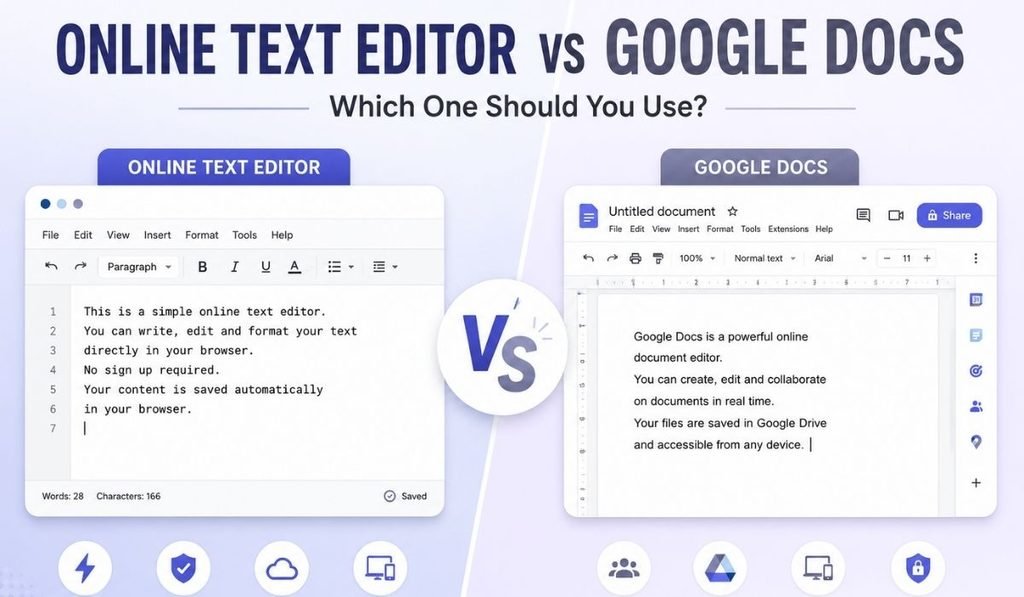
Writing online is easier than ever. You can open a browser, start typing, and create notes or documents without installing large software.
Two common choices are an online text editor and Google Docs. Both let you write and edit text in a browser, but they are built for different needs.
Google Docs is a powerful online document editor. It is especially useful when you need real-time collaboration, comments, sharing, and advanced document features.
An online text editor is often simpler. It can be a better choice when you just want to open a writing space and start typing without dealing with a large set of features.
In this guide, we will compare an online text editor vs Google Docs and explain which one may be better for different writing tasks.
What Is an Online Text Editor?
An online text editor is a writing tool that works directly in your web browser.
You can use it to write, edit, and format text without installing desktop software. Depending on the editor, you may also get features such as:
- Rich text formatting
- Word counting
- Character counting
- Autosave
- Find and replace
- Text alignment
- Printing
- Document export
- Dark mode
An online text editor is useful when your main goal is writing and editing text quickly.
For example, you can use the Online Text Editor on YourOnlineNotepad to start writing directly in your browser.
You can then use the Word Counter to check your document length or the Character Counter when you need to stay within a character limit.
What Is Google Docs?
Google Docs is an online word processor from Google.
It provides many features for creating and managing documents, including formatting, sharing, comments, collaboration, and document editing. Google Docs is especially well known for allowing multiple people to work on the same document at the same time.
It is a good choice when you need to work with other people or create more complete documents.
For example, a team can use Google Docs to write a report together, leave comments, suggest changes, and review the same document.
This makes Google Docs more than a simple writing space.
Online Text Editor vs Google Docs: Main Differences
The biggest difference is purpose.
An online text editor is often designed for quick and simple writing.
Google Docs is designed for full online document creation and collaboration.
| Feature | Online Text Editor | Google Docs |
|---|---|---|
| Browser-based | Yes | Yes |
| Quick writing | Excellent | Yes |
| Rich text formatting | Depends on editor | Yes |
| Word counting | Often available | Yes |
| Character counting | Often available | Available through tools/features |
| Real-time collaboration | Usually limited or unavailable | Yes |
| Comments | Depends on editor | Yes |
| Sharing | Depends on editor | Yes |
| Google account | Depends on editor | Usually required |
| Templates | Usually limited | Yes |
| Advanced document features | Usually limited | Yes |
| Simple interface | Often yes | More feature-rich |
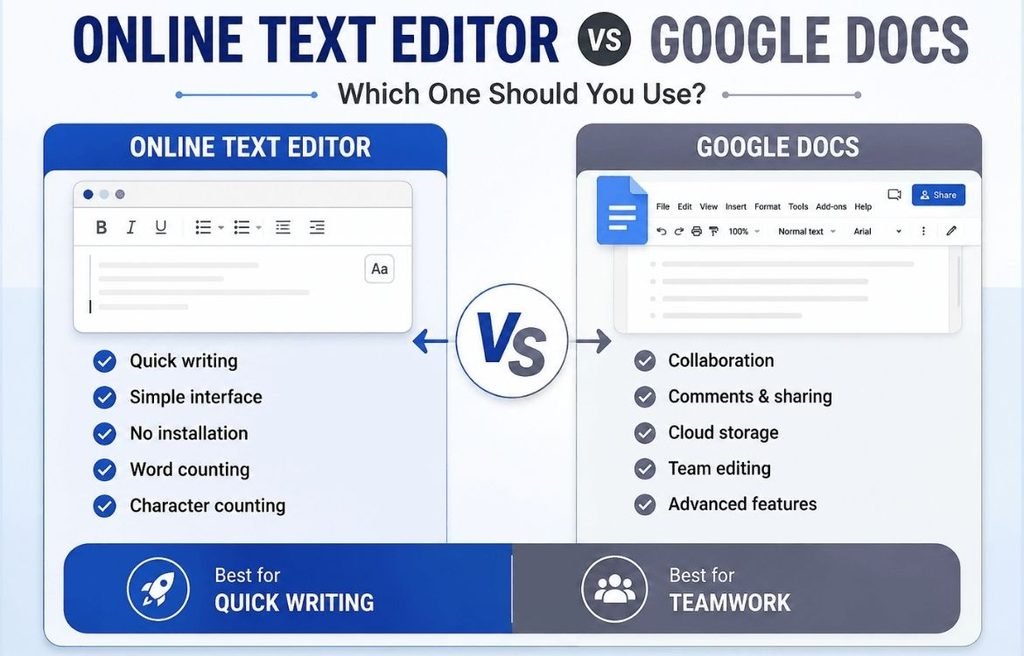
| Best for | Quick writing and notes | Collaboration and documents |
Important: Features vary between online text editors, so always check the specific tool before making a choice.
1. Ease of Use
One of the biggest advantages of a simple online text editor is ease of use.
You open the website, click inside the editor, and start writing.
There may be fewer menus, buttons, and settings to learn.
Google Docs has a larger set of features. This is useful when you need them, but it can feel like more than you need for a quick note or simple draft.
Best for simplicity: Online Text Editor
If you only want to write something quickly, a lightweight online editor can be the easier choice.
2. Speed and Simplicity
Imagine you need to write a quick idea, meeting note, email draft, or short article.
You may not need templates, comments, advanced sharing, or collaboration tools.
You simply need a place to type.
This is where an online text editor can be useful.
A focused writing tool removes many unnecessary steps and lets you concentrate on your text.
Best for quick writing: Online Text Editor
Google Docs is still fast, but it offers a much wider set of document features.
3. Rich Text Formatting
Both tools can support text formatting, but the exact features depend on the online text editor you choose.
Common formatting options include:
- Bold
- Italic
- Underline
- Headings
- Lists
- Text alignment
- Text colour
- Highlighting
- Links
Google Docs provides a broader document-formatting system, making it suitable for more advanced documents.
A simpler online text editor may provide only the formatting tools most writers use every day.
Best for advanced formatting: Google Docs
Best for simple formatting: Online Text Editor
4. Word and Character Counting
Word counting is important for many types of writing.
Students may have a required word count. Writers may want to know how long an article is. Content creators may need to check the length of their text.
An online text editor may show word and character counts while you write.
YourOnlineNotepad also connects writing with tools such as the Word Counter and Character Counter, making it easier to check your content.
This can be useful when writing:
- Essays
- Blog posts
- Articles
- Social media content
- SEO titles
- Meta descriptions
- Reports
Best for a simple writing-statistics workflow: Online Text Editor
5. Collaboration
This is where Google Docs has a major advantage.
Google Docs is built for people working together. Multiple users can edit a document, see changes, add comments, and suggest edits.
For example, a teacher can review a student’s document while the student makes changes.
A content team can also work on the same article without sending different document files back and forth.
Best for collaboration: Google Docs
If collaboration is your main requirement, Google Docs is usually the stronger choice.
6. Sharing and Comments
Google Docs also works well when you need to share a document with other people.
You can give others access to your document and use comments or suggestions during the editing process.
This is useful for:
- Team projects
- School assignments
- Client work
- Content editing
- Business documents
A basic online text editor may not provide the same collaboration features.
Best for sharing and feedback: Google Docs
7. Storage
Storage works differently depending on the online text editor.
Some editors save notes locally in your browser. Others may save documents to an online account or cloud service.
Google Docs uses Google’s online storage system and connects closely with Google Drive.
This means you should always understand where your documents are stored before choosing a writing tool.
If you use a local-storage-based editor, clearing browser data can remove locally stored notes.
For important work, it is a good idea to export or keep a backup of your documents.
8. Account Requirements
One major difference can be the need for an account.
Some online text editors allow you to start writing without creating an account.
This is useful when you want to:
- Write a quick note
- Draft text
- Check word count
- Edit content
- Use a writing tool immediately
Google Docs is closely connected to a Google account for saving and managing documents.
Best for no-signup writing: Depends on the editor
If avoiding account creation is important to you, choose an editor that clearly allows writing without signup.
9. Offline Use
Offline support depends on the tool.
Some online editors can continue working offline using browser storage or PWA technology.
Google Docs also supports offline work when it has been properly set up for offline use.
However, offline features can depend on the browser, device, and settings.
So don’t assume that every browser-based text editor works offline simply because it opens in a browser.
Tip
If offline writing is important, test the editor before depending on it for important work.
10. Privacy
Privacy is another important difference to consider.
When you use an online writing tool, you should know whether your text is:
- Stored locally
- Saved to an account
- Uploaded to a server
- Synced across devices
Some users prefer a simple editor that stores notes locally in their browser.
Others prefer cloud storage because they want to access documents from different devices.
There is no single answer for everyone.
The right choice depends on what you are writing and how you want your content stored.
11. Export Options
Exporting allows you to move your writing to another application.
Depending on the tool, an online text editor may support formats such as:
- TXT
- HTML
- DOC or DOCX
Google Docs also supports several download and document formats.
If you frequently move documents between different applications, check the supported formats before choosing your editor.
Online Text Editor vs Google Docs: Which Is Better for Students?
Both can be useful for students.
Choose an online text editor if you:
- Need to write quick notes
- Want a simple writing space
- Need word and character counts
- Don’t need collaboration
- Want to start writing quickly
Choose Google Docs if you:
- Work on group assignments
- Need teacher feedback
- Share documents with classmates
- Need comments and suggestions
- Work on larger collaborative projects
For simple writing, an online text editor may be enough. For group work, Google Docs is usually the better choice.
Which Is Better for Writers?
Writers have different needs.
A blogger writing a first draft may not need a full document suite.
They may simply want a clean writing space where they can focus on their ideas.
An online text editor can be useful for:
- Blog drafts
- Article ideas
- Short stories
- Email drafts
- Content planning
- Quick notes
Google Docs may be better when a writer works with editors, clients, or other writers.
Best choice depends on your workflow.
Solo writing: Online Text Editor
Collaborative writing: Google Docs
Which Is Better for Quick Notes?
For quick notes, simplicity matters.
If you only need to type something and save it, a lightweight online text editor can be more convenient.
You don’t necessarily need a large document workspace for a grocery list, meeting note, idea, reminder, or short draft.
Best for quick notes: Online Text Editor
Which Is Better for Teamwork?
Google Docs is the stronger choice for teamwork.
Its real-time collaboration features allow people to work on the same document and review changes together.
For example:
Writer → Editor → Client
Everyone can work from the same document instead of sending multiple versions by email.
Best for teamwork: Google Docs
When Should You Use an Online Text Editor?
An online text editor may be the better choice when you want:
- Quick writing
- A simple interface
- No complicated setup
- Browser-based access
- Word counting
- Character counting
- Rich text formatting
- Autosave
- Quick notes
- Draft writing
It is especially useful when writing is your main task and you don’t need advanced collaboration features.
When Should You Use Google Docs?
Google Docs is a better choice when you need:
- Real-time collaboration
- Comments
- Suggestions
- Document sharing
- Team editing
- Templates
- More advanced document features
- Google Drive integration
Google Docs is particularly useful for teams, students, teachers, editors, and businesses working on shared documents.
Why Use YourOnlineNotepad?
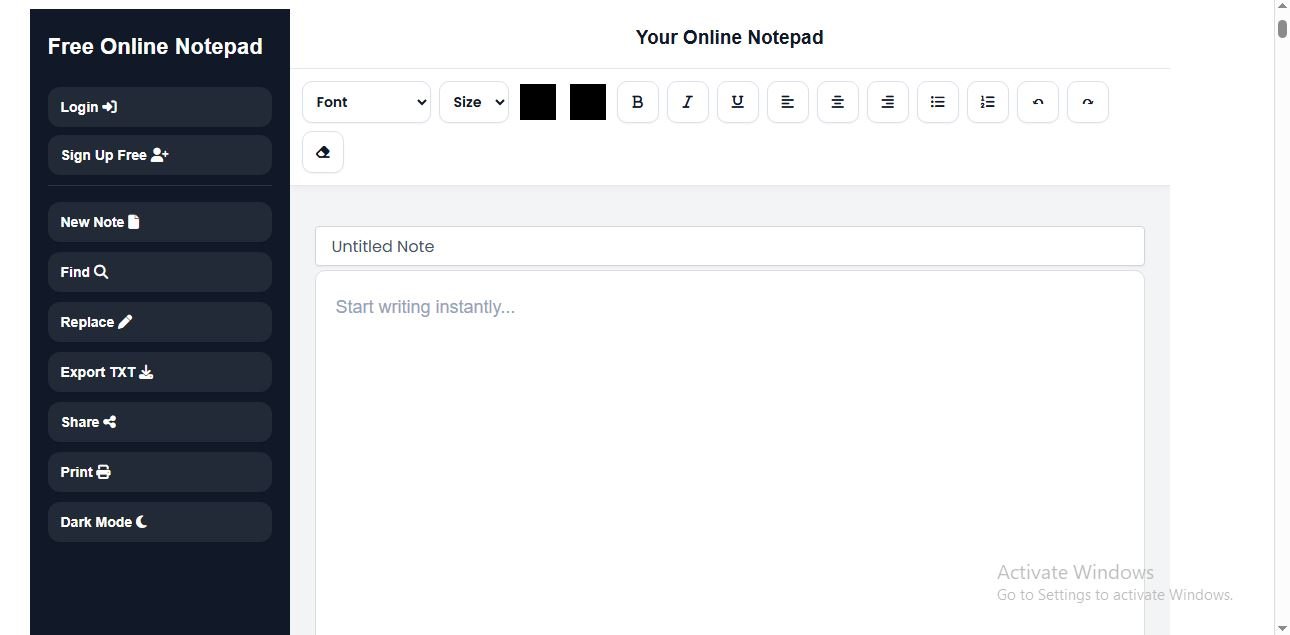
If you want a simple place to write online, YourOnlineNotepad focuses on the everyday writing experience.
You can start writing in your browser and use useful writing tools without turning a simple note into a complicated document project.
YourOnlineNotepad provides tools such as:
- Online Text Editor
- Word Counter
- Character Counter
- Reading Time Calculator
- Text Cleaner
- Rich text formatting
- Autosave
- Printing
- Document export
This makes it useful for people who want to write first and deal with extra features only when they need them.
For example, you can draft an article in the Online Text Editor, check its length with the Word Counter, check character limits with the Character Counter, estimate reading time, and clean unwanted formatting before publishing.
Ready to start writing?
Try the free Online Text Editor and start writing directly in your browser.
Online Text Editor vs Google Docs: Quick Decision
Still not sure?
Use this simple guide:
| If you need… | Choose |
|---|---|
| Quick notes | Online Text Editor |
| Simple writing | Online Text Editor |
| Distraction-free writing | Online Text Editor |
| Word and character checking | Online Text Editor |
| Rich text for everyday writing | Either |
| Real-time collaboration | Google Docs |
| Comments and suggestions | Google Docs |
| Group projects | Google Docs |
| Shared documents | Google Docs |
| Advanced document workflows | Google Docs |
The simple answer
Choose an online text editor when you want a quick and simple place to write.
Choose Google Docs when you need collaboration, sharing, comments, and more advanced document features.
Neither tool is best for every person. The right choice depends on what you need to do.
Frequently Asked Questions
Is an online text editor the same as Google Docs?
No. Google Docs is a type of online document editor, but it offers more collaboration and document-management features than many simple online text editors.
Is an online text editor free?
Many online text editors are free. However, features can vary between tools.
Is Google Docs free?
Google Docs offers free access for many users with a Google account, while some Google Workspace features are designed for organizations and paid plans.
Which is better for simple writing?
A simple online text editor can be better when you only need a clean place to write and edit text.
Which is better for collaboration?
Google Docs is generally better for collaboration because it supports real-time editing, comments, and sharing.
Can an online text editor count words?
Yes. Many online text editors include a built-in word counter.
Can an online text editor count characters?
Yes. Some online text editors include a character counter, which is useful for content with character limits.
Can I use an online text editor without downloading software?
Yes. Browser-based editors can normally be used without installing desktop software.
Can I use Google Docs offline?
Yes, Google Docs can support offline work when the required offline settings have been enabled. The exact experience depends on the device and browser.
Which is better for students?
It depends on the task. An online text editor is useful for quick notes and individual writing, while Google Docs is better for group projects and teacher feedback.
Which is better for writers?
For solo drafting, a simple online text editor may be enough. Writers who work with editors, clients, or teams may prefer Google Docs.
Conclusion
An online text editor vs Google Docs is not really a competition where one tool wins for everyone.
They solve different problems.
An online text editor is a good choice when you want simple, fast, browser-based writing. It can be useful for notes, drafts, articles, assignments, emails, and everyday text editing.
Google Docs is a stronger choice when you need collaboration, sharing, comments, suggestions, and advanced document features. Its real-time editing is one of its biggest strengths.
So the choice is simple:
Need a simple place to write? Try an online text editor.
Need to work with other people? Google Docs may be the better choice.
If you want a lightweight writing workspace with useful writing tools, try the Online Text Editor from YourOnlineNotepad and start writing directly in your browser.