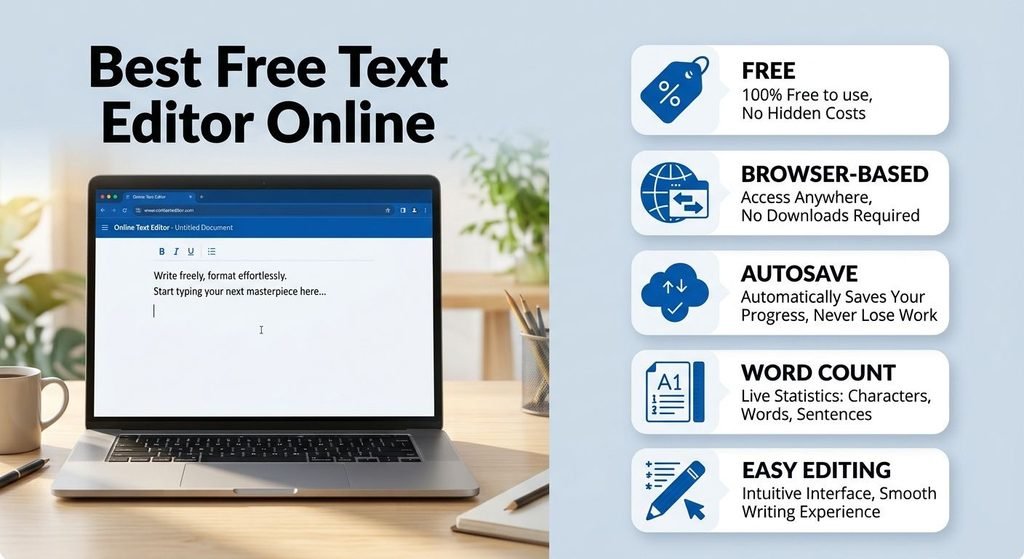
Finding the best free text editor online can be difficult because many tools offer different features. Some are designed for quick notes, while others are made for writing, document editing, or coding.
A good online text editor should be easy to use, work in your browser, and provide the features you actually need. You should also consider autosave, formatting, word counting, privacy, file support, and mobile access.
In this guide, we will explain what to look for in a free online text editor and how to choose the right one for your needs.
If you are new to online text editors, first read our complete guide What Is an Online Text Editor?.
What Makes the Best Free Text Editor Online?
The best editor is not necessarily the one with the most features. It is the one that makes your writing simple and gives you the tools you need.
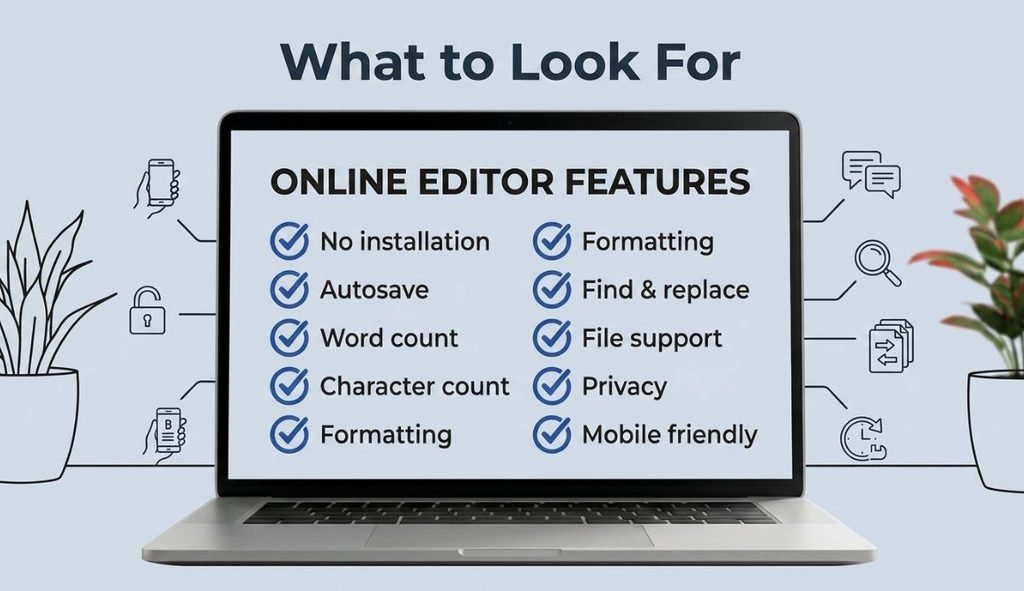
Before choosing an online text editor, look for these important features:
- Free access
- No complicated installation
- Easy-to-use interface
- Autosave
- Word and character counting
- Text formatting
- Find and replace
- Printing
- Text export
- Mobile-friendly design
- Privacy-friendly storage
- Dark mode or other comfortable writing options
For everyday writing and note-taking, you usually do not need a complicated document program.
A simple browser-based editor can be enough.
1. Choose an Editor That Works in Your Browser
One of the biggest benefits of an online text editor is that you can start writing directly in your browser.
You do not have to install a large desktop program before you can create a note or write a document.
YourOnlineNotepad is designed for browser-based writing and note-taking. You can open the tool and start writing without going through a complicated setup process.
This can be useful when you are using:
- A desktop computer
- A laptop
- A tablet
- A mobile phone
- A shared or school computer
A browser-based editor is especially useful when you need to write something quickly.
For example, you might need to write a meeting note, save an idea, prepare an assignment, or draft an email.
You can simply open your online editor and start writing.
2. Look for Autosave
Autosave is one of the most important features to consider when choosing a free online text editor.
Imagine spending an hour writing an assignment and then accidentally closing the browser. Losing that work can be frustrating.
An editor with automatic saving can help reduce this problem.
YourOnlineNotepad automatically saves your notes while you work, so you do not have to depend on manually saving every few minutes.
This can be helpful for:
- Meeting notes
- School assignments
- Blog drafts
- Personal notes
- Ideas
- To-do lists
- Everyday writing
However, you should always understand how an online tool stores your information before using it for sensitive or important material.
3. Check Word and Character Counting
If you write regularly, word and character counting can save you time.
Students may need to meet a specific word limit for an assignment. Writers may want to know the length of an article. Bloggers may need to check how much they have written.
YourOnlineNotepad includes word and character counting, so you can see important writing statistics while working on your text.
For example, you can use the editor to draft a 500-word assignment and check the word count without opening another tool.
If you need more detailed statistics, you can also use our [Word Counter].
For character limits, our [Character Counter] can help you check your text.
4. Decide How Much Formatting You Need
Different writers have different formatting needs.
If you only write simple notes, plain text may be enough.
But if you are writing an assignment, article, or organized document, formatting can make your content easier to read.
Useful formatting options may include:
- Bold
- Italic
- Underline
- Headings
- Lists
- Text alignment
- Text color
- Highlighting
YourOnlineNotepad provides useful text formatting tools, allowing you to organize and style your writing without using a full desktop word processor.
For example:
Meeting Notes
- Call the client at 10 AM.
- Finish the report.
- Send the final draft on Friday.
Formatting makes the important information easier to find.
If you want to understand the difference between simple and formatted text, read our guide [Plain Text vs Rich Text].
5. Find and Replace Makes Editing Easier
Find and replace is another useful feature to look for.
Imagine you have written a long document and used the same company name 30 times. Later, the company changes its name.
Changing every occurrence manually can take a lot of time.
A find-and-replace feature lets you search for a word or phrase and replace it with another one.
YourOnlineNotepad includes Find and Replace, making it easier to locate and update text in your document.
This feature is useful for:
- Long notes
- Articles
- Assignments
- Reports
- Drafts
- Repeated words or phrases
Even a simple text editor becomes much more useful when it includes basic editing tools like this.
6. Check Printing and Export Options
Sometimes you need to take your online writing outside the browser.
For example, you may want to print your notes or save a copy of your text.
Before choosing an online editor, check which options it provides.
YourOnlineNotepad lets you print your notes and export text as a TXT file.
TXT files are useful when you want a simple text copy that can be opened by many different programs.
Printing can also be useful for:
- Assignments
- Meeting notes
- Checklists
- Drafts
- Study notes
If you regularly work with text, having simple export and print options can make your workflow easier.
7. Consider Privacy and Storage
Privacy is an important part of choosing an online text editor.
Before entering personal or sensitive information, ask:
Where is my text stored?
Different online editors can use different storage methods. Some may save information in the browser, while others may use online accounts or cloud storage.
YourOnlineNotepad supports browser-based note-taking, making it convenient for everyday notes and writing.
However, you should always read the privacy information of the specific tool before storing sensitive information.
For important documents, it is also a good idea to keep a backup copy.
8. Choose an Editor That Matches Your Needs
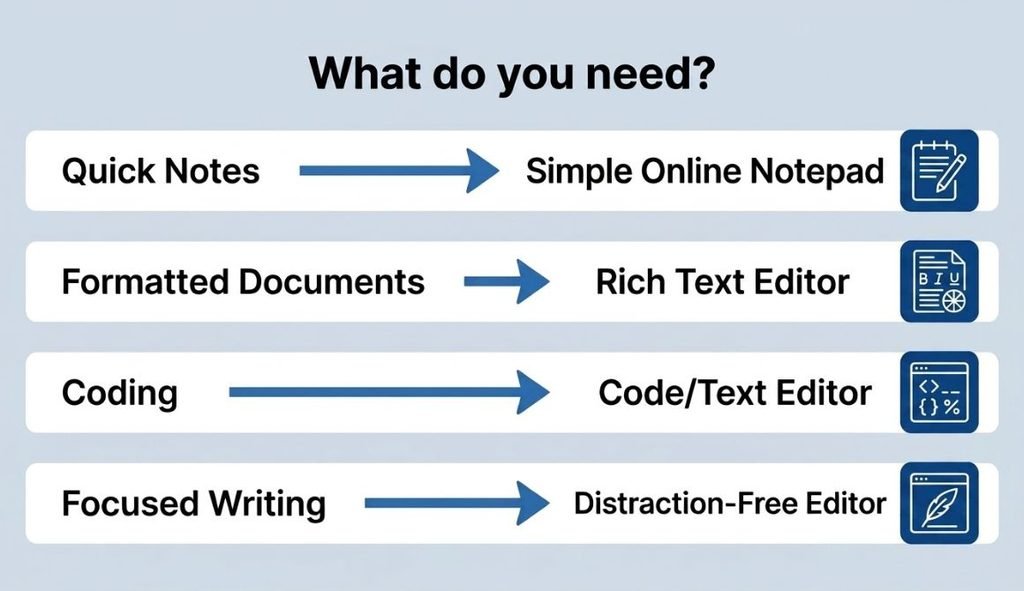
The best free text editor online depends on what you want to do.
Best for quick notes
Look for:
- Simple interface
- Fast access
- Autosave
- Easy editing
- Word counting
YourOnlineNotepad is designed around simple online note-taking and writing.
Best for students
Students may want:
- Word count
- Character count
- Formatting
- Autosave
- Printing
- Easy text editing
These features can make writing assignments and study notes easier.
You can also use our [Reading Time Calculator] when you want to estimate how long it takes to read your finished text.
Best for writers
Writers may prefer:
- A clean writing area
- Distraction-free writing
- Word counting
- Formatting
- Autosave
- Easy editing
For longer writing projects, a simple interface can help you concentrate on the content instead of complicated software menus.
Best for developers
Developers often need features that ordinary writing tools do not provide, such as:
- Syntax highlighting
- Code completion
- Multiple cursors
- Code folding
- Programming language support
If you mainly write code, a dedicated online code editor may be a better choice than a general writing tool.
Popular Free Online Text Editors
YourOnlineNotepad takes a more straightforward approach for everyday online writing and note-taking.
The important point is that the best editor depends on your needs. A developer may want coding features, while a student may care more about word counting and formatting.
Why Choose YourOnlineNotepad?
If you want a simple place to write and manage notes in your browser, YourOnlineNotepad provides several useful writing features in one place.
You can use it for:
- Quick notes
- School assignments
- Meeting notes
- Blog drafts
- Emails
- To-do lists
- Brainstorming
- Personal writing
Useful features include:
- Automatic saving
- Rich text formatting
- Word counter
- Character counter
- Find and Replace
- TXT export
- Dark mode
Instead of opening several different tools for basic writing tasks, you can use one browser-based workspace.
[Try the Free Online Notepad] and start writing directly in your browser.
How to Choose the Best Free Text Editor Online
The right online text editor depends on what you want to do. Before choosing one, check these important features:
- For quick notes: Look for a simple interface, autosave, and easy editing.
- For students: Word count, character count, formatting, and printing can be useful.
- For writers: Choose a clean writing area with autosave, word counting, and Find and Replace.
- For formatted documents: Look for headings, bold, italic, lists, colors, and other formatting options.
- For coding: Choose an editor with features such as syntax highlighting, code completion, and support for programming languages.
- For privacy: Check how the editor stores your text and whether you need an account.
YourOnlineNotepad is a practical choice for everyday online writing and note-taking. It includes features such as automatic saving, text formatting, word and character counting, Find and Replace, printing, and TXT export.
The main rule is simple: choose an editor based on your needs, not the number of features it offers.
If you mainly need a simple browser-based place for notes, drafts, assignments, and everyday writing, you can [try the Free Online Notepad].
Frequently Asked Questions
It can be, but safety depends on the individual service. Before entering private or sensitive information, check its privacy policy and understand how your text is stored.
Yes. Browser-based text editors work directly in a web browser, so you can write and edit text without installing traditional desktop software.
Can I use an online text editor on my phone?
Yes, if the editor has a responsive mobile design. A mobile-friendly editor can be useful for writing notes, ideas, lists, and short drafts while you are away from your computer.
Some online text editors provide autosave, while others require manual saving. Always check how a particular editor saves your work before using it for important documents.
YourOnlineNotepad includes automatic saving, helping you keep your notes while you work.
Can I export my text from an online text editor?
Many editors provide export or download options, but the available formats vary. YourOnlineNotepad allows you to export text as a TXT file and also provides a printing option.
Can I use an online text editor for school assignments?
Yes. Online text editors can be useful for writing assignments, drafts, notes, and essays. Features such as word count, character count, formatting, and autosave can make student writing easier.
Yes, but the right tool depends on the type of coding you do. Simple text editors can be useful for basic code and text files, while larger development projects usually need specialized coding features.
What is the difference between an online text editor and a word processor?
An online text editor is generally focused on writing and editing text in a browser. A full word processor usually provides more advanced document features, such as complex layouts, templates, extensive formatting, and document management.
Read our detailed comparison: [Online Text Editor vs Microsoft Word].
Is an online text editor better than Google Docs?
It depends on your needs. Google Docs is useful when you need collaboration and shared documents, while a simple online text editor can be more convenient for quick individual writing.
See our comparison of [Online Text Editor vs Google Docs].
Is YourOnlineNotepad free?
Yes. YourOnlineNotepad provides a free online space for writing and note-taking directly in your browser.